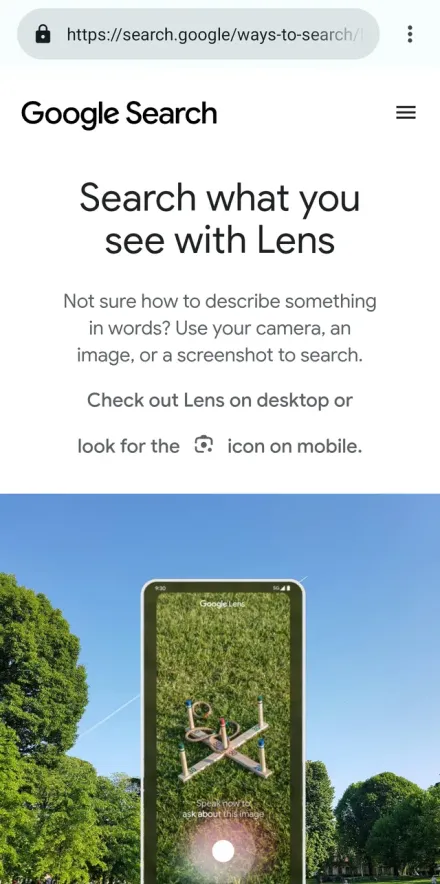
Google Lens turns an image into a starting point for a search. Instead of guessing the name of a plant, typing a long passage or describing an object, you can start with a photo. The useful part is knowing which result to trust and when a visual match needs another check.
What Google Lens can help you do
Lens can search for similar objects, recognize text and translate words in an image. You can access it through the Google app on supported Android and iOS devices; the exact entry point and available features vary by device. A picture already saved on your phone can be a useful starting point, too.
A visual match is a lead to investigate. Compare details and read the original page before relying on an identification. Similar packaging, lighting and incomplete text can lead to misleading results.
Google Lens modes at a glance
| Google Lens mode | What it does best | What to check before trusting it |
|---|---|---|
| Image & photo search (Google Image Lens) | Find visually similar objects, products, or source pages from a camera frame or saved screenshot | Open the original source page and compare details instead of relying on the first visual match |
| Online text scanner & copy (OCR) | Recognize, select, and copy printed or screen text from signs, notes, or documents | Verify numbers, proper names, and line breaks before pasting elsewhere |
| Live translation | Translate text in signs, menus, and labels directly from a photo or camera view | Check full context and verify critical wording when accuracy matters |
| Object, plant & homework identification | Identify everyday items, plants, or study questions from a photo (What is this?) | Cross-check species, model names, or study steps with reliable references |
Copying and translating text
Frame a clear, well-lit passage and select the text Lens recognizes. Check line breaks, numbers and unfamiliar names before pasting it elsewhere. For translation, compare the result with the original and keep context in mind.
Avoid uploading confidential documents just to save a little typing. Use a non-sensitive example while learning the controls. Google explains visual search history options in its help documentation; review those settings if you want to understand how searches may be saved.
How to get started
- Open the Google app and look for the Lens camera icon in the search bar.
- Choose an existing image or frame an object with the camera, granting only the access you need.
- Adjust the selection so that the relevant object or text fills the frame.
- Open the source behind a result, or select and review text before copying or translating.
What works well
- Starts a search when you do not know the right words.
- Combines visual discovery with practical text tools.
What to keep in mind
- An image match can be wrong or lack context.
- Features and controls differ across devices.
The apps308 take
A useful everyday shortcut for searching and handling text. Start with a simple photo and check the source behind the answer.
Frequently asked questions
How do I use Google Lens online on PC (Chrome desktop) vs. Android and iPhone?
On Android and iPhone, open the Google app and tap the Lens camera icon in the search bar to scan with your camera or upload a saved photo. On PC or Mac using Chrome desktop, you can use Google Lens online right in the browser—via the camera icon in Google Search or by right-clicking any webpage image and choosing Search image with Google—without installing a separate app.
Do I have to pay to use Google Lens?
Google Lens is free. You can access it from the Google app on supported devices.
Can I use a photo already on my phone?
Yes. Google documents using existing photos and screenshots, as well as the camera, with supported Lens entry points.
Is the result always accurate?
No. Treat it as a search result and verify the original source, especially for consequential decisions.